Kablammo!
Unseeing, unthinking brains.... Loss!
Averatec 3150 overheating: solved
January 31, 2006I’ve had my Averatec 3150 laptop for about 18 months now, and it’s served me well the whole time. It’s tiny enough that I had a hell of a time finding a bag small enough to carry it in comfortably, and I’ve been able to leave it running for weeks at a time with no problems. After a while, my habit of leaving Firefox running for a week with a few dozen tabs open made me want more RAM, so I added 384 megs’ worth. The touchpad started failing on me after a year of heavy use, but with a little help from eBay I was able to swap in a replacement part. I wished I had a DVD burner in the thing, so I replaced the original optical drive. (The hardest part was cutting a corner off the new drive‘s faceplate so it would fit in the provided opening.)
In short, I really like this machine—I only wish the battery held more of a charge—and I’m not afraid to open it up and tinker with the insides. Of course, buying it refurbished and thus having the warranty end after 90 days probably helped my courage. You might not be so ready and willing to tear off your stickers marked “Warranty void if removed” if their threats aren’t meaningless.
So when I recently noticed a disconcerting tendency for it to hard crash during heavy CPU usage, I naturally wanted to fix the problem. Whenever I was doing anything very CPU intensive, like compressing a lot of audio (or video for that matter), playing a game, or even running an innocent CPU torture test, my computer would do two things: (a) get very hot and (b) turn itself off. Naturally, I suspected the cooling system.
As it turns out, this was the culprit:

Apparently having a solid wall of dust keeping any air from flowing over your heatsink is a bad thing. Who’da thunk?
Here’s some more pictures of the disassembly/reassembly process for anyone who gives a damn about these things.
- Step 1: Remove battery.
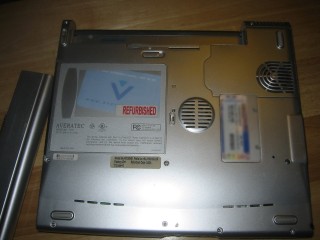
You don’t want the computer turning on in the middle of surgery, after all. - Step 2: Remove RAM slot cover.
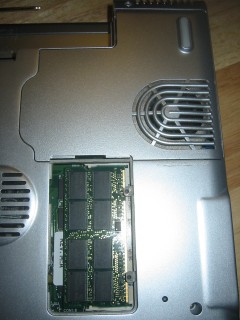
There are two small screws (you do have a teensy Phillips screwdriver, right?) in the part of the case with your official Windows sticker on it. Unscrew them and you can take it off and see your system RAM underneath. One of the sticks of RAM can be swapped out for a bigger one (or a smaller one I suppose), and this is how to get at it. - Step 3: Remove CPU/heatsink cover.
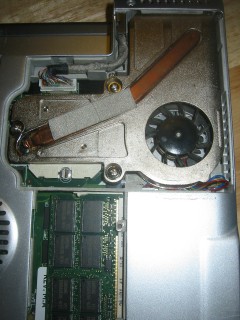
That panel you just unscrewed was the only thing (besides a little sticker) holding the next panel in place. Carefully remove that next panel and you can see the heat pipe and fan that so valiantly try to keep your CPU cool. You can also see a connector that I believe attaches to the LCD display/backlight/inverter apparatus, but that’s a topic for another day. - Step 4: Unscrew cooling apparatus.
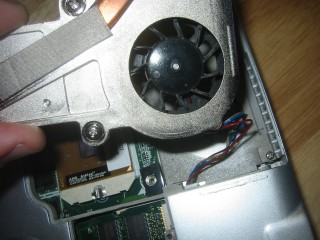
There are three screws holding a copper plate snug to the CPU. Unscrew them and you can carefully and gently start sliding out the whole fan/heatpipe/heatsink combination. - Step 5: Unplug fan.
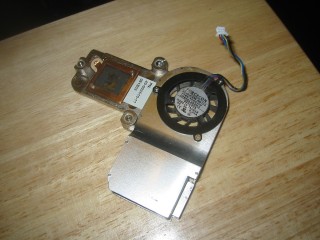
Unplug the little connector that goes to the fan, so you can remove the whole kit and caboodle. - Step 6: Remove fan.
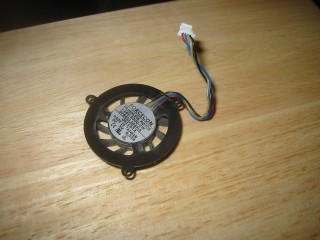
Three tiny screws are holding the fan to its surroundings, and keeping you from getting at the heat sink. Take ’em out, and make sure you don’t drop them in your carpet or something. - Step 7: Have at it!
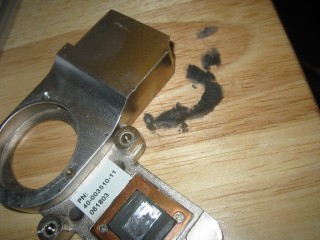
Damn, that is a big piece of fuzz. Now that it’s out of the way, I can actually see light shining through my heatsink. And more importantly, my system doesn’t crash anymore.


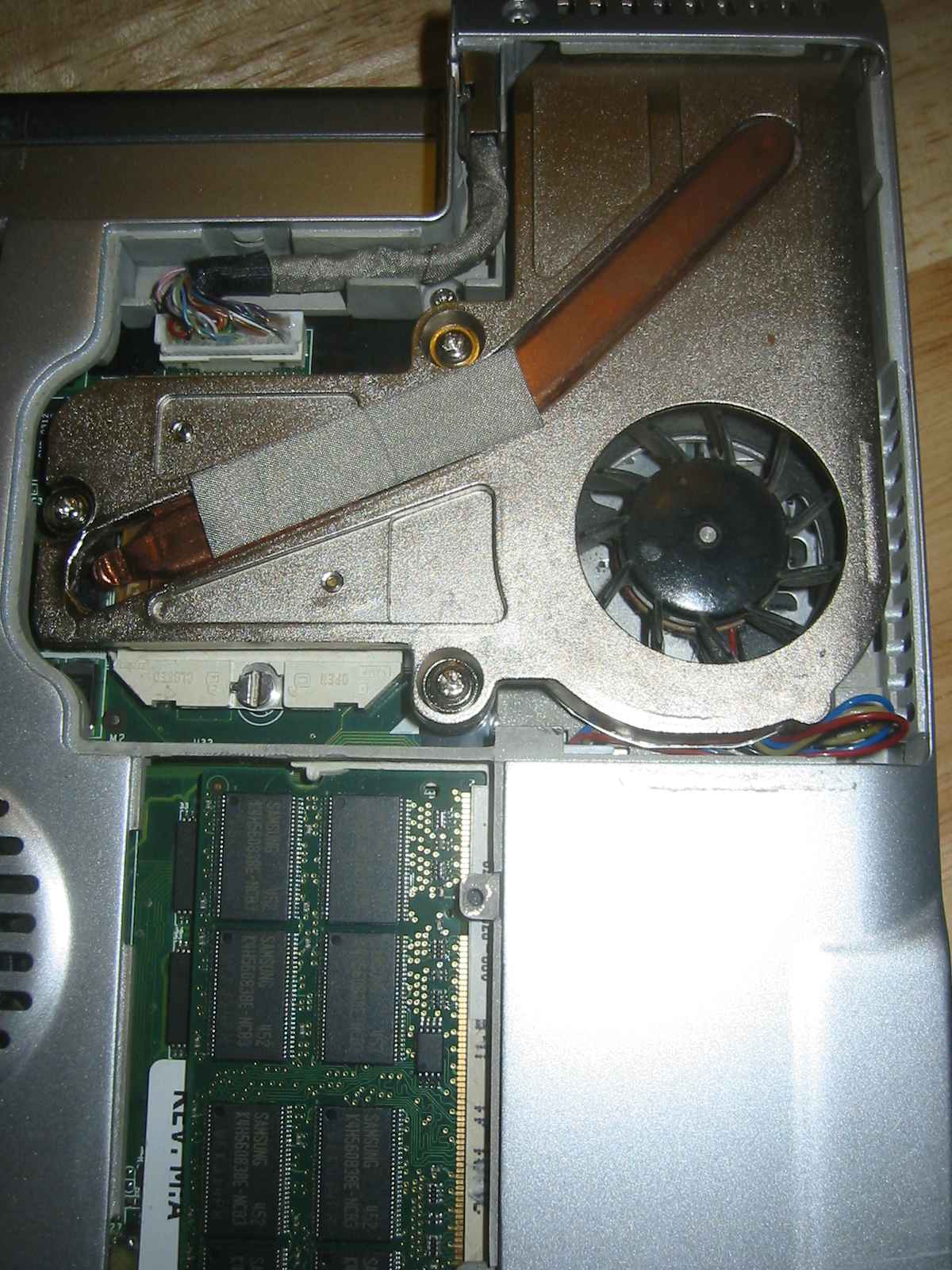


Reverse these steps to put your system back together, and if you’re like me you can just ignore the issue of thermal compound between your CPU and heatsink. An hour and a half of Prime95 and my system is still going strong, so my cooling is absolutely working well enough for my taste.
30 Comments
Leave a Reply
Powered by WordPress with Hiperminimalist Theme design by Borja Fernandez.
Just what I was looking for, thx ;)
How can you suspect if you have memory, hardrive, or processor problems causing intermittent startups.
When I press the power button, nothing happens, I may hit the reset button, but it doesn’t turn on all the time either. When I am able to get it on, I don’t get a flicker on the screen, so I’m not sure if it’s posting or what. The screen doesn’t even come on. I can hear the fan running, but don’t know how to check that each component is functioning correctly or what could be the root of the problem. Can you help?
If you need to reach me, my cell number is 541 223-8275. I love this computer and don’t want to part with it, so if I can salvage it, then I want to do it. Even if it involves removing that Do Not Void sticker.
Some people say that I must be a horrible person, but that’s not true. I have the heart of a young boy — in a jar on my desk.
Great post. Tell you what, though: Clean the old thermal compound off the surface of the aluminum heat sink by carefully scraping it with a small screwdriver blade until it shines. Wipe the excess compound off the top of the CPU, and put a dab of new compund on. If you’ve gone this far, why not do it right? You’ll hav e assembled it better than they did at the factory.
I have had my averatec for 4 years and have had problems with overheating. I found this information and it helped alot my computer has not shut off! The details and the pictures were a great resource.
Thanks!
Any other tips?
Judy
After reading your fix, I took apart my averatec 6200 – it’s put together a bit differently, but essentially the same, and my clump of dust – about 2/3 the length of my pinky – was not underneath the fan, but between the fan and the heatsink.
For the first time in ages, I can run a virus scan!
Thanks a lot!
My daughters Averteck has ben sent back to Circuit City Warrent Repair for 3 times and has gone threw 4 power cords, due to heat/melting the end of the cord.Just recieved the laptop today and the cord as already started to melt
This will be the 5th cord.
Thank you, I had taken the heatsink off many times (it didn’t solve the problem) but never had the idea of actually removing the fan. Big chunk of dust there.
But PLEASE, PLEASE, you must put thermal paste on! Do not forget! Clean the residual on your heatsink and on the CPU and apply a new batch. I skipped this step and the comp would shut off in one minute. Put thermal paste back on and it has never shut off ever since!!!! I feel like apologizing to my laptop for not having done this sooner!
I found this extremely helpful. I had not even thought of the idea of dust buildup before I came across your post, but sure enough my girlfriends laptop had just as much as yours. I had a checklist going of things to do to reduce the heat, I’ll bet this helps a lot. P.S.- To help I also bought a cooling pad to help circulate air.
-Thanks
I have had my computer for four years now and it was overheating. I took it to Best Buy and they told me there was no dust in the fan and my computer is probably “reaching the end of it’s life.” I just graduated college and relocated to my first job. I can’t afford a new labtop! Thanks for your informative instuctions. I just pulled out a whole lotta dust. Best Buy wont get my money today!
WOW!!!! Thanks so much for this little journal documenting entry, finally pulled this laptop out of the closet and started using it again, gotta fix that darn heating problem and your journal sure has given me a good idea how to go about it. thanks again!
Great article!!! Do you have anyting similar for hard drive replacement in the 3150? Thanks
Has not sounded this good even when new. Half hour and 10 screws later. Thanks a ton.
this article inspired me to clean out an averatec 3260 we had lying around! i got a similar 2 inches of dust and hair (we have 2 cats :-), and after some thermal paste from radioshack, it is speeding through an ubuntu install. thanks very much!
Just did this, I can’t believe the difference! I was about to give up on my Averatec 3150 for this reason and I have never performed surgery on a laptop before. Thanks for the great instructions and photos really helped! I am so pleased to be able to keep it around a bit longer!
Thanks, Thanks, Thanks!!!
thanks for the detailed surgery methodology. It was very interesting. I wonder if it would help my keyboard problem. The enter key does not work. Maybe there is fuzz down in there. Have any suggestions other than replacing the whole keyboard which is what I am about to do.
Can someone describe just how to properly apply the Thermal paste?
Also thanks for the great photos describing the process in such detail.
Hi
I tried few times to clean up the fan however this last time I have problem connecting my fan to the board seems the pluge is gone!!!?
Cheers for this. Just pulled out a huge furball from the fan that I would never have thought of if I hadn’t found your excellent posting. The mother in law can now go back online! As for thermal compound, I scraped off the old gunk and applied Arctic Silver 5. got it cheap at newegg.com and instructions for application can be gotten at arcticsilver.com
Best regards
Rob
A gift that keeps on giving. I was given this little hot rod Averatec by my daughter because it kept overheating.
The wad of hair and dust I removed was well compacted and filled with chunks of debri.
All’s cool now. Thanks.
I can’t believe how much dust was in my Averatec after performing this “little” task. This computer has literally sat in the corner for over a year due to it shutting off after a minute or two of use. Now it runs smoothly, thanks so much for the detailed instructions.
Hi. I followed your the instructions. removed the fuzz, reversed my steps and now xp won’t boot . The computer shuts off. Any ideas?
Thank you, this worked perfectly for me and my avertec that was shutting down due to overheating. Thank you for posting this information with such a complete and good explanation.
wow! omg thank you so much. my dad used to have this one and got a new one just because of the overheating and a charger problem. i fixed both of them in about 20-30 mins. and now it works great….and is mine :)
Cleaned out CPU heatsink by taking the fan out as suggested. I applied just a touch of paste before putting it back together and after cleaning the old residue off (wasn’t much, they skimped).
Installed Powernow! for K7 in Lupu Puppy Linux and it doesn’t sound like a blow dryer anymore when it is idling. Dual booted XP is quiet, too.
There is still another tiny fan in the center of mine, 3150HS, but that will be another day…
Thanks!
The Tramp
cheers….
i opened it before but didnt remove the fan from the kit so i didnt find that dust-thingy preventing any airstream.
couldnt even surf without overheating, now it all works again…
cheers gubimann
… i used it on the averatec 3300/ e1200.
thanks buddy!
Helviti skitif0 ha ? i have a 9400 too i take it a part once a year or when needed. i uslualy remove the heatsink and wash it with running water to get everything out, then apply some thermal paste and reinstall it